Managing Time Cards
The “Manage Time Cards” page allows the employer to view a list of time cards grouped by pay period for each employee.
An interactive dashboard will display:
- The total number of time cards you are viewing currently
- The number of time cards you have approved. Click “View” to see the approved time cards.
- 准备批准的时间卡的数量。单击“查看”以查看现成的时间卡。
- The number of pending time cards that need to be completed by your employees. Click “View” to see the time cards that are still pending.
Go toPayroll > Time and Attendance Tasks > Manage Time Cards
- 选择工资频率。(只有在您的员工有多个频率时才显示出来。)
- Select your pay period. By default, the pay period will be the current time period.
- Click “Run Report.”
- Click the “Show Inactives” toggle to see inactive employees in the list.
On the Manage Time Cards page, you can:
- 对时间卡进行任何编辑as needed by selecting the employee name. The link will direct you to the employee timecard.
- See help articles about editing employee time cards forSalary EmployeesandHourly Employees有关更多信息。
- 不te: when a time card has been sent to payroll, the status remains “Active” until the payroll is finished. If the payroll is not finished, you can still edit the active time card and send it to payroll again. For more details, seeCorrecting Time Card Hours After Sending to Payroll.
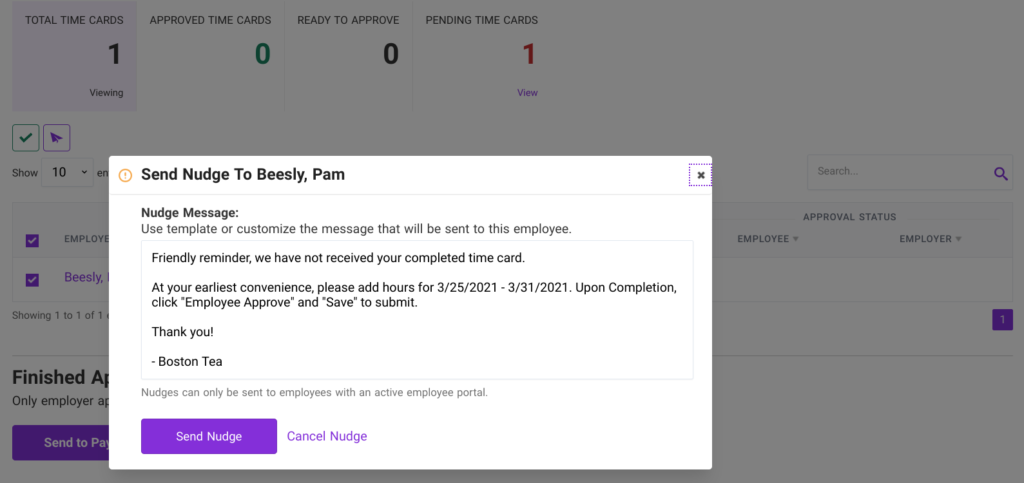
- “Nudge” your employeesby selecting employee time cards that are still pending and clicking the envelope icon on the top left of the column A message lightbox will appear. You can customize or send the email to the employees. Note: your employee must have the employee portal set up to use the nudge feature.
- Approve timecardsdirectly on the Manage Time Cards page. You can also approve directly on the employee time card, whichever you prefer. Check the box by the name to select the employee(s). To mass select employees, check the box at the top of the header. You can then select the green checkmark to approve all time cards.
- Time cards must be manager-approved to send to payroll.
- After a time card is manager-approved, the manager can still edit the time card, but the employee cannot.
- Reject Time Cardsdirectly on the Manage Time Cards page. You can also reject directly on the employee timecard, whichever you prefer. Check the box next to the employee(s) you want to reject. Next, click the “X” at the top of the column to reject timecards.注意:你的员工必须有员工门户set up to use the nudge feature.
- 使用默认消息或单击框中将您的消息自定义给员工。
- Click the “Reject Time Card” button.
- Employees will be notified via email and in their employee portal.

- Send Approved Time Cards to Payroll.After you have approved the time cards, click the “Send To Payroll” button at the bottom of the page.
- All unpaid time cards that are manager-approved will be sent to payroll.
- Even after approved time cards are sent to payroll, their status remains “unpaid” until the payroll is finished. See the full articleSending Approved Time Cards to Payroll.
- View closed time cardsin the Edit/View column, click “View” to view a time card. No edits can be made after a timecard has been paid.
[DEFINITION: Payroll Pay Period]
What Does Pay Frequency Mean? | How Often to Pay Your Employees
Was this page helpful?
Let us know if you liked the post. That’s the only way we can improve.